How to automatically tag free-text answers
- Apr 23
- 1 min read
Start by clicking the pen icon to the right beneath free-text answers.

If you do not have any previous tags, you will need to create new ones. You can do this manually, or use "AI tag suggestions".
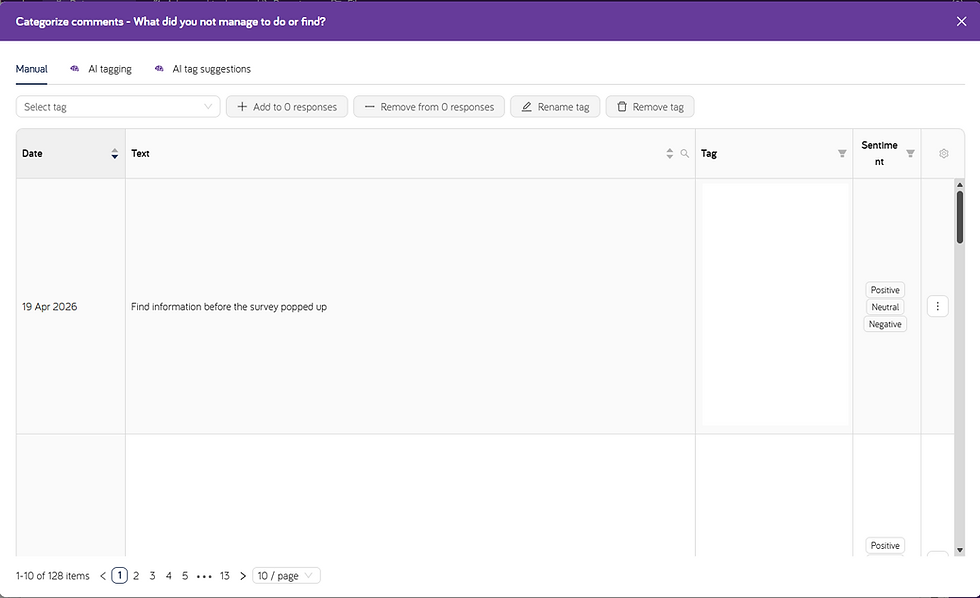
If you have existing tags, you can use them as examples when creating new ones. You create suggestions by clicking "Generate suggestions". In the next step, you will be able to choose which tags to save.

Next, select the tags you want to create. The number of occurrences for each tag will be shown in parentheses.

Once you've generated your tags, you go to "AI tagging". First you pick which tags you want the AI to use when tagging the responses.

Next, uncheck the boxes if you do not want sentiment analysis and/or you do not want it translated to English. The English translation will be shown when you hover over the response.
You can also add custom instructions if you want to. We recommend adding a sentence about what your website does for extra context.
If you want to create an ongoing AI tagging with the settings you've chosen, click create ongoing AI tagging. This will start an ongoing AI tagging for all new responses going forward.

Please note that if you add tags after creating the ongoing AI-tagging, those tags will not be used. Only the tags in the configuration to the right will be used for the ongoing AI-tagging.
If you want to tag your already existing responses, press the "Tag X responses now". You can do this after creating an ongoing AI-tagging with the same settings.